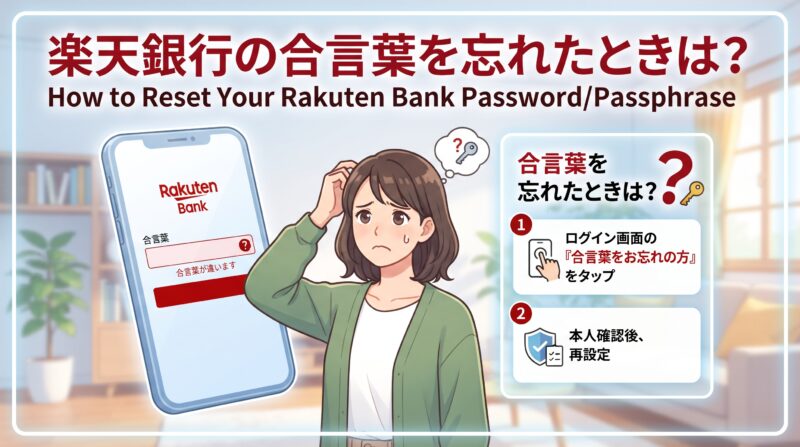
マネフォの連携が切れて、再連携しようとした際、合言葉ってなんだっけ?となってしまったので備忘録がてらここに残したいと思います。
楽天銀行の合言葉を忘れたときは、**「合言葉を初期化する」→「新しい合言葉を登録する」**の順で手続きします。
注意!
楽天銀行アプリではなく、ChromeやSafariなど、インターネットを見るアプリから操作してください。 楽天銀行の公式案内に沿って説明します。困ったときは
① 楽天銀行のサイトを開く
下のリンクから開き、「ログイン」を押します。
ご自身のユーザID・ログインパスワードを入力し、合言葉を聞かれる画面まで進みます。
② 「合言葉を初期化する」を押す
使っている機器によって、押す項目が少し違います。
| スマートフォン | パソコン |
|---|---|
| 「合言葉が不明なお客さま」→「合言葉を初期化する」→「認証画面に進む」 | 「合言葉を初期化する」 |
③ 確認用のメールを送ってもらう
次のボタンを押します。
- スマートフォン:「ワンタイムキーを送信する」
- パソコン:「ワンタイムキー発行」
「ワンタイムキー」とは、本人確認のために銀行から届く、一時的な確認コードです。
④ 届いたコードと生年月日を入力する
楽天銀行の画面を閉じずに、メールを確認してください。
- 楽天銀行から届いたメールを開く。
- メールに書かれたワンタイムキーを確認する。
- 楽天銀行の画面に戻り、ワンタイムキーと生年月日を入力する。
- スマートフォンは 「認証を行う」、パソコンは 「合言葉の初期化」を押す。
これで初期化が完了します。
⑤ もう一度ログインし、新しい合言葉を登録する
初期化後は、再度ログインして、画面の案内に沿って合言葉を登録します。初期化だけで終わらず、再登録まで進めてください。
合言葉は、3つの質問と、それぞれの答えを設定します。答えはひらがな2~30文字です。登録の確認画面では、楽天銀行の暗証番号の入力も必要です。
メールを受け取れない場合
以前のメールアドレスで、もう確認できない場合などは、郵送でワンタイムキーを受け取る手続きに進みます。
| 機器 | 選ぶ項目 |
|---|---|
| スマートフォン | 「ワンタイムキーが届かないお客さま(郵送でお届け)」 |
| パソコン | 「ワンタイムキーをメールで受け取ることができないお客さまはこちら」 |
その後、登録住所を確認して郵送を申し込みます。到着の目安は1週間程度です。届いたら、再び初期化画面を開き、郵送されたワンタイムキーで手続きを進めます。
実際の画面を見ながら進めたい場合は、こちらが便利です。 スマホ・パソコン別の画面画像と、説明動画があります。
なお、合言葉を聞かれずにログインできた場合は、パソコンでは「登録情報の変更」→「合言葉登録/変更」から設定し直せます。
What should I do if I forget my Rakuten Bank passphrase/security word?
I forgot my Rakuten Bank “secret word” (aikotoba) when I tried to reconnect Money Forward (MoneyForward ME), so I’m writing down the steps here as a memo to myself.
If you forget your Rakuten Bank secret word, the process is “Reset the secret word” → “Register a new secret word.”
Important!
Do this from a browser app such as Chrome or Safari, not from the Rakuten Bank app. The steps below follow Rakuten Bank’s official guidance. If you get stuck, refer to it.
① Open the Rakuten Bank website
Open the link below and click “Log in.”
👉 Open the official Rakuten Bank website
Enter your user ID and login password, and proceed until you reach the screen that asks for your secret word.
② Click “Reset the secret word”
The item to click differs slightly depending on your device.
- Smartphone: “Customers who don’t know their secret word” → “Reset the secret word” → “Proceed to authentication screen”
- PC: “Reset the secret word”
③ Have a verification email sent to you
Click the following button:
- Smartphone: “Send one-time key”
- PC: “Issue one-time key”
A “one-time key” is a temporary verification code sent by the bank to confirm your identity.
④ Enter the code you received and your date of birth
Keep the Rakuten Bank screen open and check your email.
- Open the email from Rakuten Bank.
- Find the one-time key written in the email.
- Return to the Rakuten Bank screen and enter the one-time key and your date of birth.
- Click “Authenticate” on a smartphone, or “Reset secret word” on a PC.
The reset is now complete.
⑤ Log in again and register a new secret word
After the reset, log in again and register your secret word by following the on-screen instructions. Don’t stop after the reset; make sure you go through to re-registration.
You’ll set three questions and an answer for each. Answers must be 2 to 30 characters in hiragana. On the registration confirmation screen, you’ll also need to enter your Rakuten Bank PIN.
If you can’t receive the email
If you can no longer access your previous email address, for example, you’ll need to go through the process of receiving the one-time key by mail.
- Smartphone: “Customers who did not receive the one-time key (delivery by mail)”
- PC: “Customers who cannot receive the one-time key by email click here”
After that, confirm your registered address and apply for mail delivery. It usually takes about one week to arrive. Once it arrives, open the reset screen again and continue the process using the one-time key that was mailed to you.
Want to follow along with actual screens?
This page is handy. It has screenshots for both smartphone and PC, plus an explanatory video.
👉 Rakuten Bank official: How to reset your secret word (with images and video)

コメント